How can we help?
Start with the next step below. If it does not work, CMA can check the connection and tell you exactly what to do next.
Finish your connection
If you just verified your email, choose Finish connection. CMA will open to the shortest safe next step for this browser.
- Return to the connection page.Use the same browser profile where you verified your email.
- Open the CMA extension.Select Complete connection once.
- Look for green.You are done when CMA says the browser is connected.
If you just verified your email, keep this browser profile open while you finish.
Check my connection
CMA checks only setup status—never the page you are viewing, passwords, messages, or form contents.
Show support details
Common fixes
Open only the issue that matches what you see.
Browser extension won’t connect
- Use the same browser profile where you opened the verification email.
- Select the CMA icon, then select Complete connection.
- If it still waits, reload the extension once and run Check my connection.
If CMA is not installed in this browser, use the official Chrome Web Store listing.
Desktop app can’t see the browser
- Open the CMA desktop app and leave it running.
- Finish the browser connection before using any repair option.
- When both are ready, CMA shows green connection confirmations.
The desktop app is optional for ordinary browser help. Use it when you want the additional local features it provides.
Windows blocked the installer
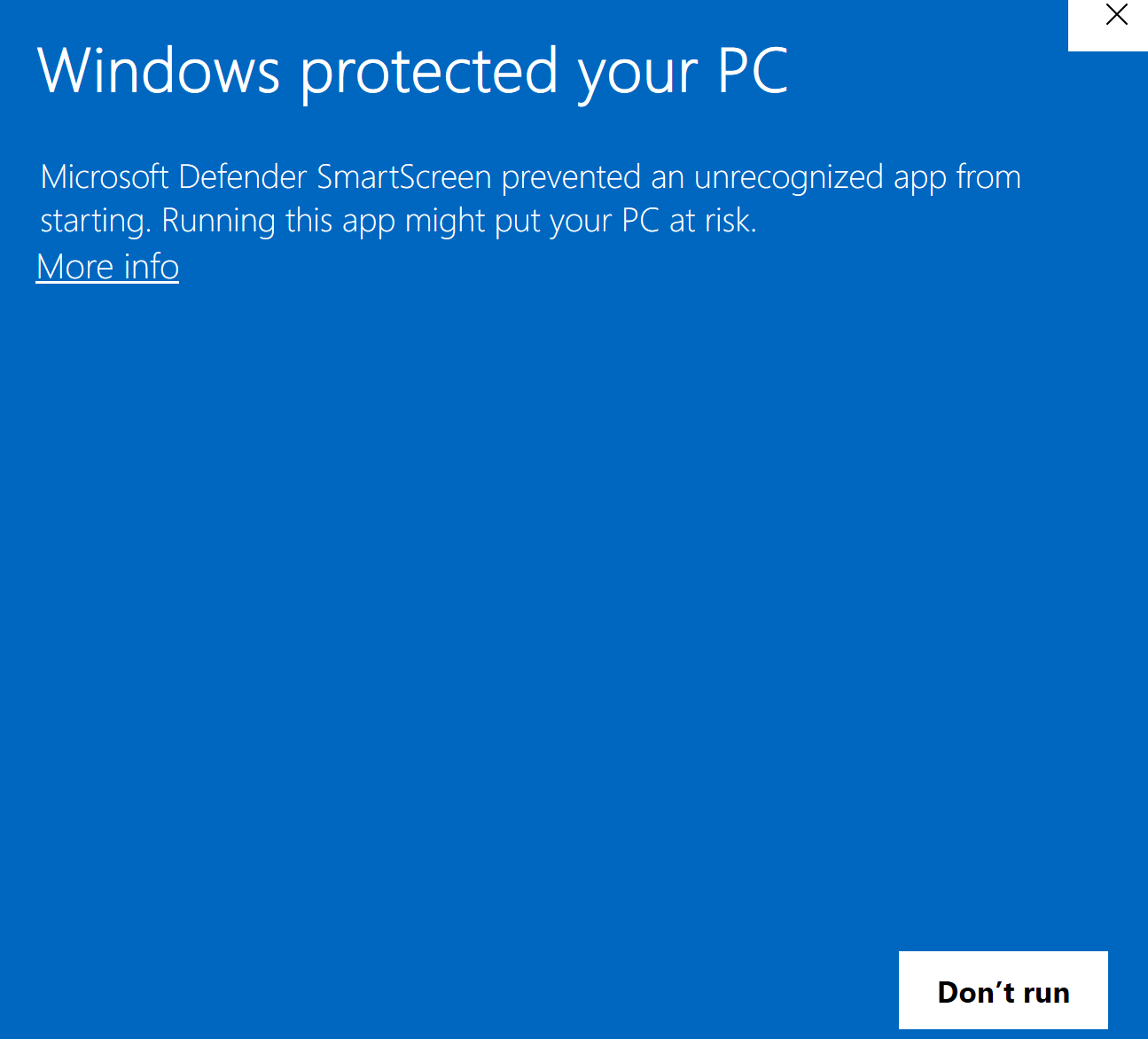
If Windows says “Windows protected your PC”
The current Windows installer is not yet code-signed, so Microsoft Defender SmartScreen may call it an unrecognized app or show Unknown publisher. That warning means Windows cannot verify the publisher identity and the file has not built enough reputation; it is not, by itself, a malware-detection result.
Safe steps for the official CMA installer
- Confirm you downloaded the installer from the official Connect My AI download and verification page on connectmyai.app—not from an email attachment, chat message, ad, or third-party download site.
- Compare your file’s SHA-256 with the value on that verification page or in CMA’s official release record. In PowerShell, run
Get-FileHash "C:\path\to\your\download.exe" -Algorithm SHA256and compare the full value, character for character. - If the source and SHA-256 both match, select More info, review the app details, then select Run anyway. Installation starts only after you make that choice.
Why this check works
SHA-256 identifies the exact installer bytes CMA published. A different value means it is not the tested release, even if the filename looks right. Microsoft explains that SmartScreen evaluates both publisher and file reputation.
Stop—do not run it
Stop if the file came from anywhere other than the official CMA page, the SHA-256 does not match, the prompt describes a different app, or Windows Security or another antivirus reports malware or a potentially unwanted app rather than only saying the app is unrecognized. Delete that file and contact support.
Work or school computer?
Your organization may remove Run anyway. Do not disable Defender, SmartScreen, or company policy. If your organization permits browser-store extensions, use the official Chrome Web Store extension option, or ask your IT administrator to approve the exact CMA release and SHA-256. Support can help provide the official release details.
Account, approvals, or plan help
Magic links work once and expire quickly. If one has expired, request a fresh link in the browser profile you want to connect.
Ask when needed prompts before protected actions. Trust this session ends with the browser session. Only the resolved final action that commits money always asks.
For billing or cancellation help, prepare a support request.
Still stuck?
Tell us what you expected and what happened. We’ll reply by email.
Sent. We’ll be in touch shortly.
Your support request is on its way to us. We’ll reply by email.